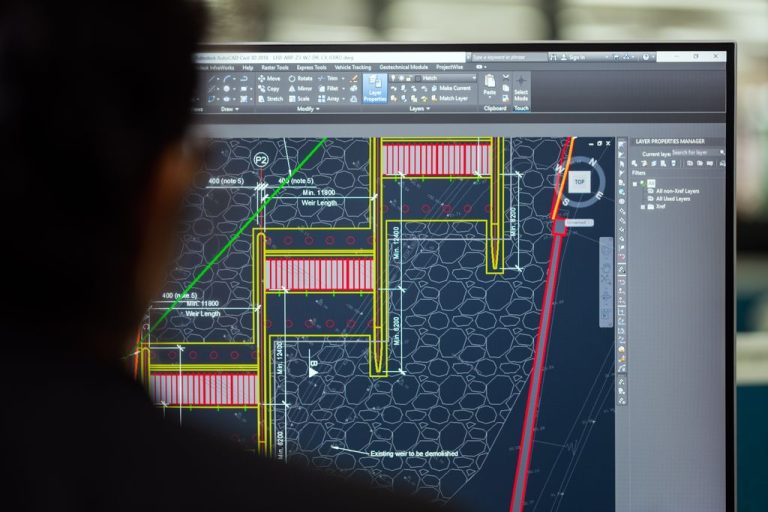

Ensuring BIM and CAD software runs fast requires workstations with dedicated graphics cards (8 GB VRAM minimum for Revit), NVMe SSDs delivering 3,500+ MB/s read speeds, 32-64 GB RAM, and optimized network infrastructure. Regular driver updates, file management discipline, and proactive IT monitoring prevent performance degradation and keep your design workflows productive.
What hardware specifications does my workstation need for smooth BIM and CAD performance?
Your workstation hardware forms the foundation of CAD and BIM performance. Underpowered components create bottlenecks that slow rendering, model manipulation, and file operations, directly impacting billable hours and project timelines.
Professional graphics cards certified for CAD workloads deliver vastly better performance than gaming GPUs. NVIDIA Quadro or AMD Radeon Pro cards with 8 GB VRAM handle complex Revit models and large AutoCAD assemblies without viewport lag or rendering delays.
|
1
|
Graphics Card
Certified workstation GPU with 8-16 GB VRAM for complex models and real-time rendering
|
|
2
|
Storage
NVMe SSD with 3,500+ MB/s read speeds for fast file loading and autosave operations
|
|
3
|
Memory
32-64 GB RAM for multi-application workflows and large assemblies with extensive reference files
|
|
4
|
Processor
Multi-core CPU with high single-thread performance (4.0+ GHz boost) for responsive viewport navigation
|
Storage speed dramatically affects file open times and autosave interruptions. Traditional hard drives create noticeable delays when loading large Revit projects or SolidWorks assemblies. NVMe SSDs reduce file load times by 70-80% compared to SATA drives.
Workstations meeting these specifications handle current software versions smoothly and provide headroom for future updates and larger projects.
How does network infrastructure affect CAD and BIM software speed?
Network performance becomes critical when your team accesses central BIM models, reference files, or cloud-based design tools. Poor network design creates latency that manifests as slow file saves, synchronization delays, and collaboration bottlenecks.
Revit worksharing and AutoCAD external references require consistent, low-latency connections to file servers. Network latency above 50 milliseconds causes noticeable delays when synchronizing with central models or loading xrefs.
Network latency under 10 milliseconds keeps Revit worksharing responsive and eliminates synchronization delays that interrupt design workflows.
Critical Network Requirements
Gigabit Ethernet connections between workstations and file servers prevent transfer bottlenecks. Wireless connections introduce variable latency and packet loss that disrupt real-time collaboration features.
Quality of Service (QoS) settings prioritize design application traffic over background updates and web browsing. This prevents bandwidth competition during critical synchronization operations.
Dedicated VLANs for CAD workstations isolate design traffic from general office network activity, reducing congestion and improving consistency.
File server performance matters as much as network speed. Servers with insufficient RAM or slow storage create artificial bottlenecks even on fast networks. Server-grade SSDs and adequate memory caching eliminate these constraints.
Professional network design and optimization ensures your infrastructure supports demanding CAD workflows without introducing performance penalties.
What software configuration and maintenance tasks improve CAD performance?
Software configuration has as much impact on performance as hardware specifications. Default settings often prioritize visual quality over speed, and accumulated temporary files gradually degrade responsiveness.
Graphics driver updates from NVIDIA or AMD frequently include performance optimizations for specific CAD applications. Quarterly driver updates can improve viewport frame rates by 10-15% and resolve stability issues.
| Configuration Area | Optimization Action | Performance Impact |
|---|---|---|
| Graphics Settings | Disable anti-aliasing and shadows in large models | 20-30% viewport speed increase |
| File Management | Purge unused blocks, layers, and styles monthly | Reduces file size 15-40% |
| Autosave Settings | Extend interval to 20-30 minutes for large files | Eliminates frequent interruptions |
| Reference Files | Use overlays instead of attachments where possible | Faster file opening and regeneration |
Application-specific tuning makes a measurable difference. Revit benefits from disabling hardware acceleration for certain display drivers, while AutoCAD performs better with it enabled. Testing configurations on representative project files identifies optimal settings.
Temporary file accumulation gradually consumes disk space and slows file operations. Scheduled cleanup of autosave folders, plot logs, and cache directories prevents this degradation.
Teams working with AutoCAD, SolidWorks, and other engineering applications benefit from IT partners who understand application-specific optimization and can implement proactive maintenance schedules.
How do I identify and resolve performance bottlenecks in my CAD environment?
Performance problems rarely announce their root cause. Slow viewport navigation could stem from graphics drivers, inadequate VRAM, network latency, or file corruption. Systematic diagnosis identifies the actual constraint.
Performance monitoring tools track GPU utilization, memory consumption, disk I/O, and network throughput during typical workflows. Metrics reveal whether your workstation is CPU-bound, memory-constrained, or limited by storage speed.
Adding RAM only improves performance if your workstation actually exhausts available memory. Monitoring shows whether you need more capacity or if the bottleneck lies elsewhere.
Outdated drivers cause crashes, visual artifacts, and poor performance. Regular updates from GPU manufacturers include critical fixes for CAD applications.
Real-time scanning and scheduled full scans compete for disk I/O and CPU cycles. Configuring scans for off-hours and excluding project folders from real-time scanning eliminates this interference.
File-specific problems require different solutions. A single corrupted Revit family or AutoCAD block can slow an entire project. Isolating problematic elements through selective loading identifies the culprit.
Network trace tools measure latency and packet loss between workstations and file servers. Consistent latency spikes during synchronization operations point to network infrastructure issues rather than workstation limitations.
Professional IT support brings diagnostic expertise and monitoring tools that quickly pinpoint constraints, avoiding costly trial-and-error hardware purchases.
What ongoing IT support keeps CAD and BIM systems performing optimally?
CAD and BIM environments require specialized IT knowledge that general business support often lacks. Engineering software has unique requirements for drivers, licensing, file management, and network configuration.
Proactive monitoring catches performance degradation before it impacts productivity. Disk space alerts prevent autosave failures, memory usage tracking identifies applications with memory leaks, and network monitoring detects infrastructure problems early.
|
Monthly
Graphics driver updates, temporary file cleanup, license server health checks
|
|
|
Quarterly
Performance baseline reviews, storage capacity planning, network throughput testing
|
|
|
Annually
Hardware refresh planning, software version compatibility testing, infrastructure upgrades
|
Managed IT services designed for engineering firms understand the relationship between infrastructure and design productivity. Comprehensive managed IT support includes workstation optimization, application-specific troubleshooting, and performance monitoring tailored to CAD and BIM workflows.
Backup strategies for design environments require special consideration. Large project files need incremental backup solutions that don’t interrupt work, and version control prevents accidental overwrites of critical design iterations.
Silver Storm Solutions provides specialized support for engineering applications with expertise in CAD workstation and high-performance computing needs. Managed IT services range from $100 to $250 per user per month depending on support scope and complexity.
The right IT partner transforms technology from a constraint into a competitive advantage, ensuring your design teams focus on creativity rather than troubleshooting performance issues.
| Cutting-edge remote access technology for swift technical issue resolution | Customizable pricing and plans for businesses of all sizes |
| Weekly integrity testing for backup solutions | Air-gapped backup security |
Frequently asked questions
How much RAM do I need for Revit and AutoCAD?
Revit requires 32 GB RAM minimum for typical projects, with 64 GB recommended for large models or multi-application workflows. AutoCAD runs adequately with 16 GB but benefits from 32 GB when working with complex 3D models or multiple drawings simultaneously. Memory requirements increase with model complexity and the number of concurrent applications.
Should I use a gaming GPU or workstation graphics card for CAD?
Workstation graphics cards like NVIDIA Quadro or AMD Radeon Pro provide certified drivers optimized for CAD applications, better viewport performance with complex models, and superior stability. Gaming GPUs may appear faster on benchmarks but lack driver optimization for professional applications and can experience viewport glitches or crashes under CAD workloads.
Why does my CAD software slow down over time?
Performance degradation typically results from accumulated temporary files, outdated graphics drivers, fragmented project files with unused elements, or insufficient disk space affecting autosave operations. Regular maintenance including driver updates, file purging, and temporary file cleanup restores performance. Monitoring tools identify whether hardware constraints or software issues cause the slowdown.
Can I run CAD software effectively on a laptop?
Mobile workstations with professional graphics cards, 32 GB RAM, and NVMe storage handle CAD applications effectively for field work and client presentations. However, thermal constraints limit sustained performance compared to desktop workstations. Docking stations with external monitors improve productivity when working from the office, and cloud-based rendering offloads intensive tasks from mobile hardware.
How often should I upgrade my CAD workstation?
Plan workstation refreshes every four to five years to maintain compatibility with current software versions and handle growing project complexity. Graphics cards and storage may need interim upgrades every two to three years as model sizes increase. Performance monitoring identifies when specific components become bottlenecks, allowing targeted upgrades rather than complete system replacement.
Related resources: AutoCAD and SolidWorks Support | In-House IT vs Managed IT for Engineering | Choosing an IT Provider for Architecture
Post tags: CAD Performance, BIM Optimization, Engineering IT Support, Workstation Support